Connect Moblin to your streaming server
A short guide to install and configure Moblin for your IRL streams with your streamion.cloud SRTLA ingest. It takes about five minutes.
- 1
Download Moblin
Install Moblin from the App Store and open it.
Moblin in the App Store - 2
Create a new stream connection
Tap the settings (gear) icon in the top-right corner, open Streams, and create a new connection.
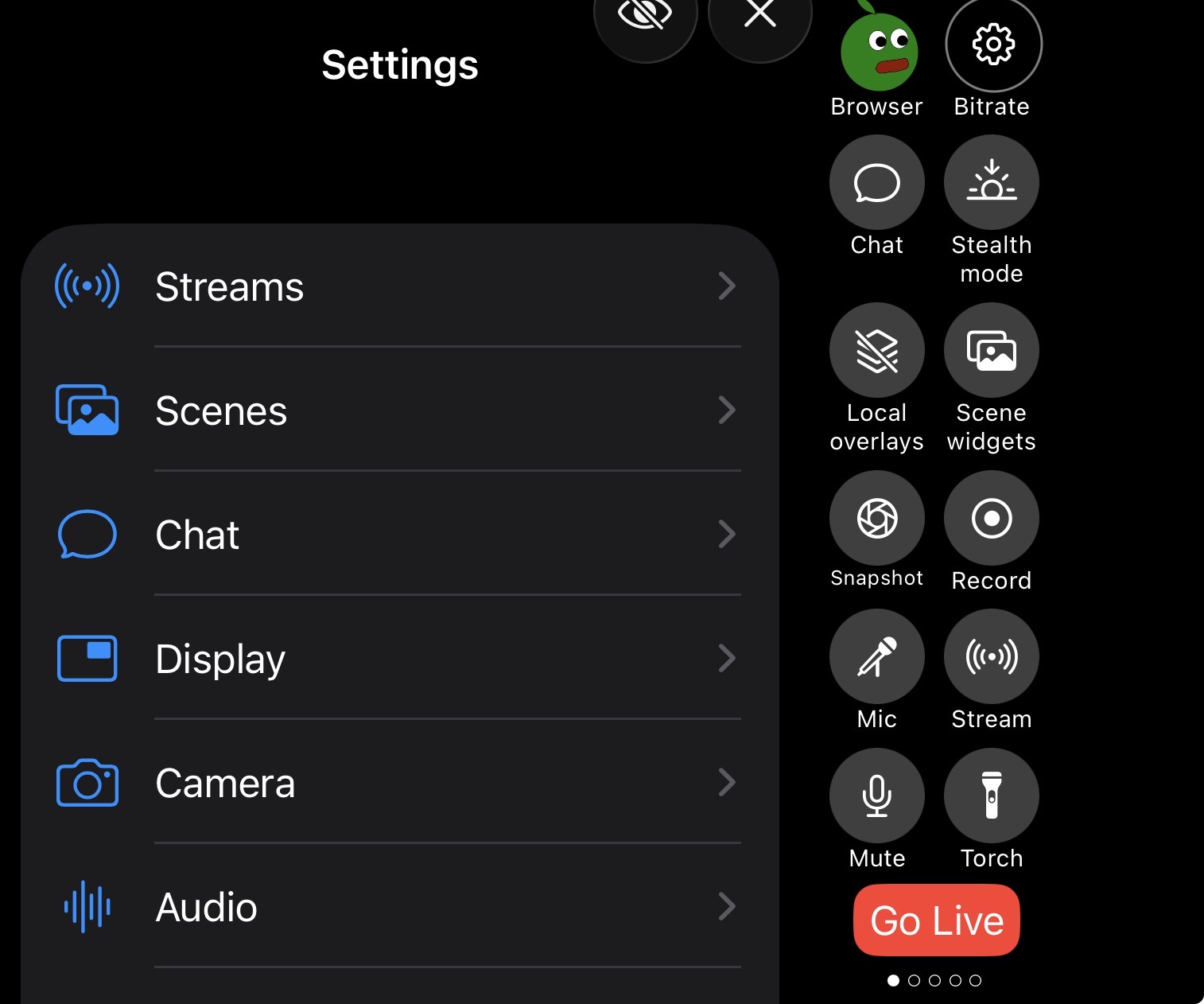
Moblin settings panel with the Streams menu - 3
Select the protocol and enter the URL
Scroll down and choose Custom. Set the protocol to SRT(LA) and paste your SRT(LA) URL into the URL field. You copy it in the portal: open your server and go to the Connect tab.
The Stream ID is filled in automatically.
For security, your personal SRT(LA) URL is shown only in the portal — never on this page. - 4
Name it and enable background streaming
Tap Next and choose a name for the connection.
Enable Background streaming before you tap Create — otherwise the stream disconnects as soon as Moblin moves to the background.
- 5
Turn on “Show all settings”
Go back to the main Settings menu, scroll down, and enable Show all settings if it isn’t on yet. This reveals the advanced SRT(LA) options you need next.
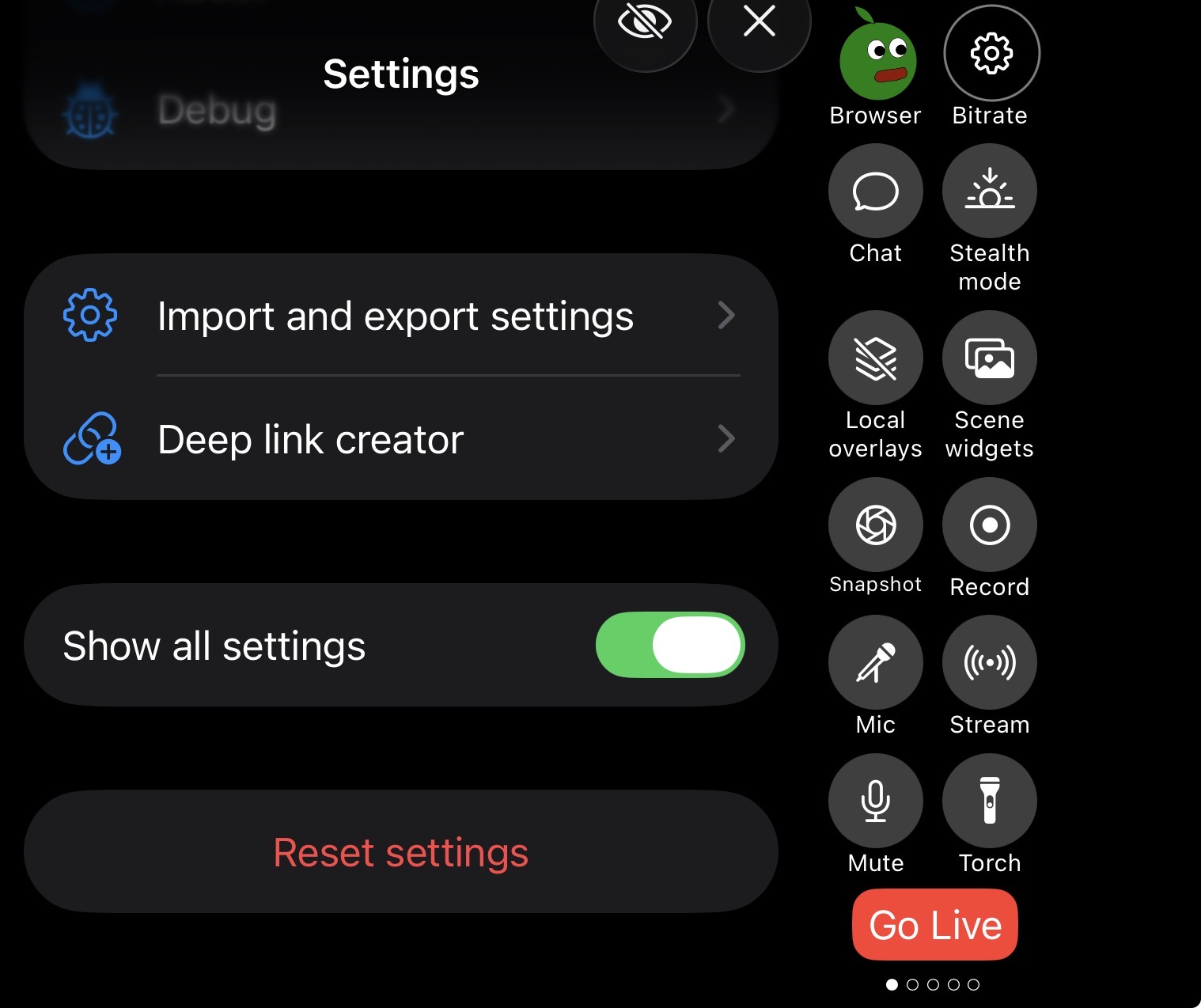
The “Show all settings” toggle in Moblin - 6
Configure the SRT(LA) destination
Open Streams again and tap your connection. In the Destination section, open the SRT(LA) menu and set it up like this:
Latency2000 msAdaptive bitrateOnBig packetsOffBig packets pack 7 MPEG-TS packets per SRT packet instead of 6. Some Android hotspots don’t work with big packets, so leave this off.
DNS lookup strategySystemImplementationMoblin“Moblin” is a more energy-efficient custom implementation; “Official” uses libSRT. Either one works.
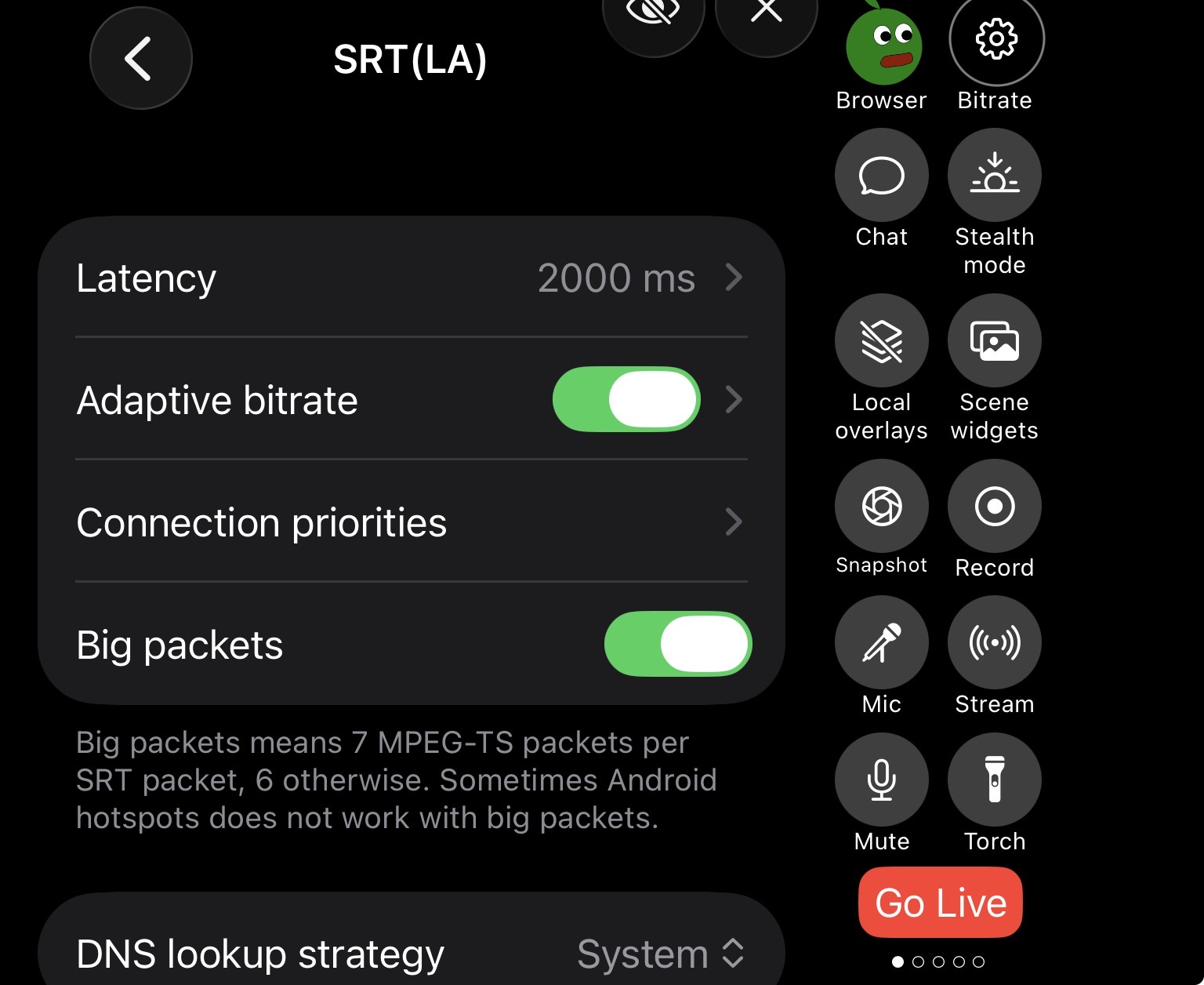
SRT(LA) settings: latency, adaptive bitrate, big packets 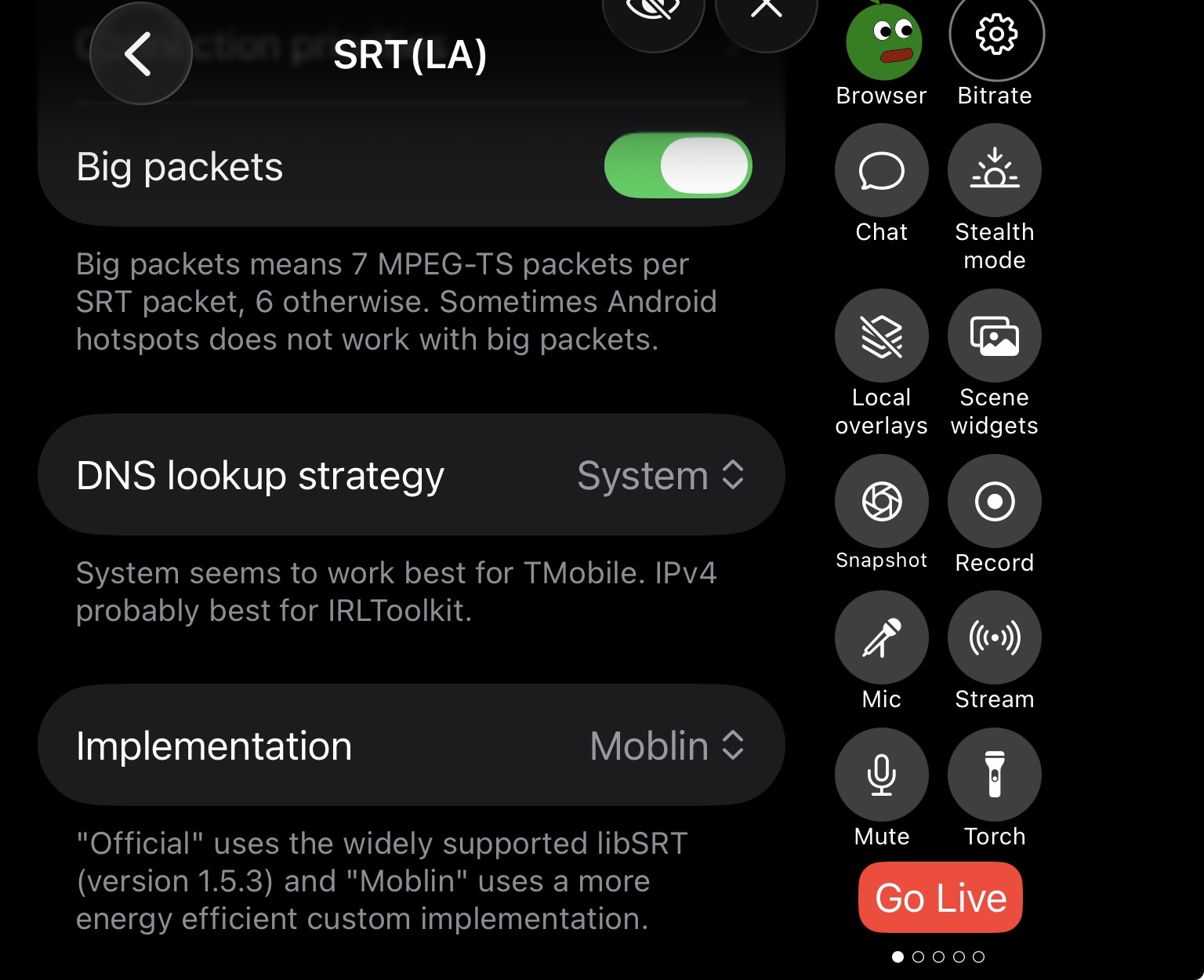
SRT(LA) settings: DNS lookup strategy and implementation - 7
Set the video settings
In your stream connection’s settings, open Media → Video and set the resolution, frame rate, and codec. Also make sure the bitrate is set to 5 Mbps.
Resolution1080pFPS60CodecH.264/AVCBitrate5 Mbps - 8
Go live (single SIM)
If you stream with a single SIM in your iPhone, you’re ready. Tap the red Go Live button to go live on Twitch directly — use the same button to start and stop the stream.
- 9
Bonding for routers, hotspots or multiple SIMs
If you use a router or a hotspot, or have more than one SIM for a more stable connection, open Connection priorities and configure bonding there. Moblin always uses the best available connection — WiFi or cellular.
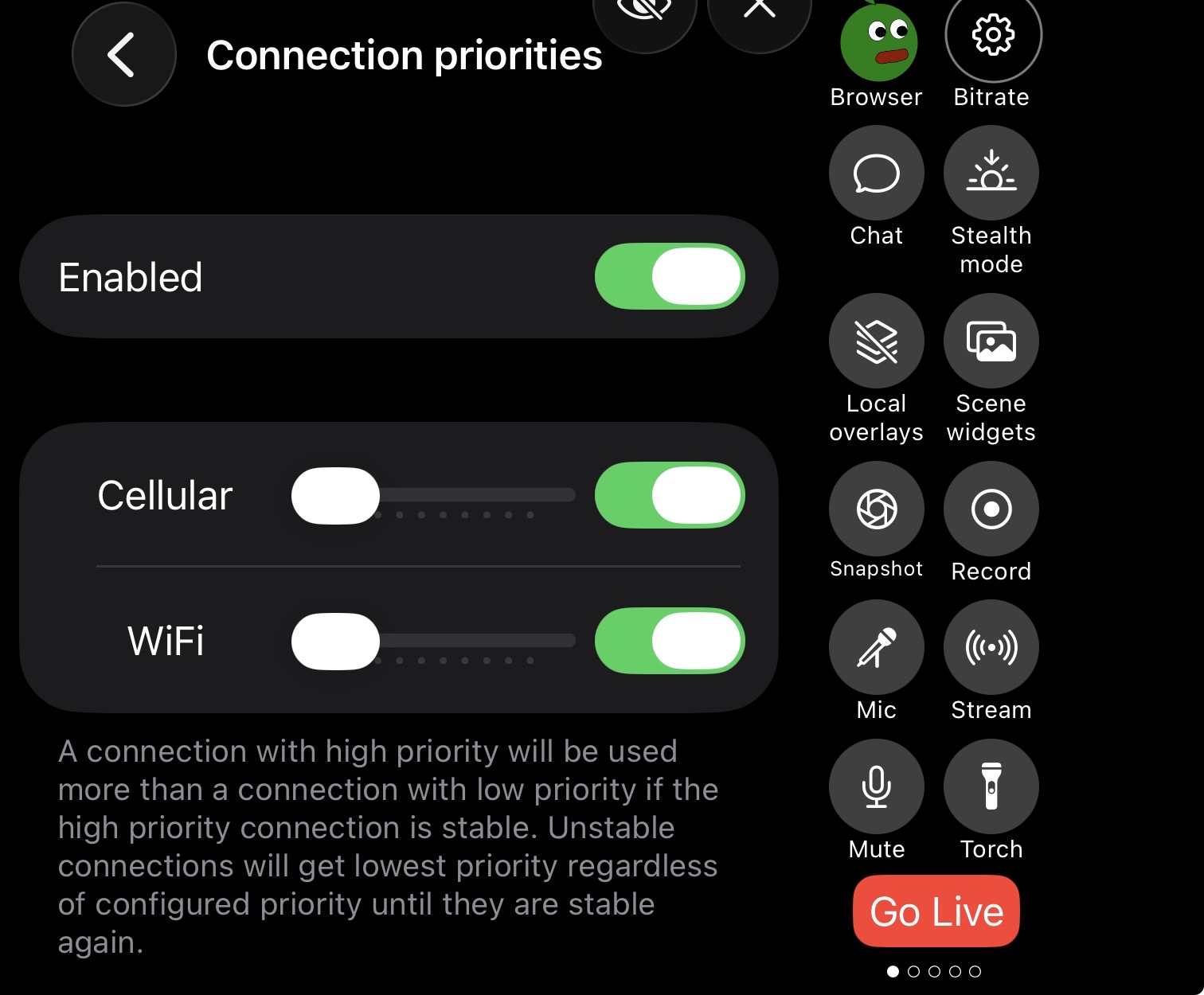
Connection priorities: bonding across Cellular and WiFi
This is a basic streaming server, so it doesn’t include scenes or other extras. If you need anything more, just let us know.
Contact us →