Spotify integration
With Spotify connected, streamion.bot can show in chat what you are listening to and take song requests from your viewers:
- Display commands —
!song,!playlist,!nexttracks. - Song requests —
!sr, plus playback control for moderators (!skip,!playsong,!stopsong) and a blacklist that keeps unwanted artists and keywords out of your playlist.
Spotify is one of two music providers; the other is YouTube Music. You can connect both, but a channel uses one provider at a time: the one you select under Music Provider on Settings → Music. As long as None is selected there, song requests are off.
Connecting
- Open Settings → Music (
/settings/music). Under Connections you see one card for Spotify and one for YouTube Music. - On the Spotify card, click Connect Spotify.
- Spotify asks you to confirm the access. Approve it.
- Back on the page, the Spotify card shows Connected and the name of your Spotify account.
- Under Music Provider at the top of the page, select Spotify. From now on the music commands in chat use Spotify, and the sidebar shows the group Music · Spotify with Playlists and SR Blacklist.
streamion.bot asks Spotify for these permissions (scopes): user-read-currently-playing, user-read-playback-state, user-modify-playback-state, playlist-read-private, playlist-read-collaborative, playlist-modify-public, playlist-modify-private. If your stored connection lacks one of them — usually because a newer version of streamion.bot needs an additional one — the card shows Missing scopes: …. Click Reconnect once to grant them; Spotify never adds permissions to an existing connection by itself.
Use your own Spotify app (Pro)
By default, streamion.bot connects Spotify through its own shared Spotify app. Spotify only lets a handful of accounts use an app like that, so the shared app's user list can be full. With streamion.bot Pro you can connect through your own Spotify developer app instead — it belongs to you, and nobody else takes up its places. Nothing about the chat commands, song requests, playlists or blacklist changes; only the connection to Spotify runs through your app.
Before you start
- streamion.bot Pro must be active for your channel — it is also included with the streamion.server packages Studio 30 and Studio. Without Pro, the Custom Spotify App card is not shown.
- Spotify Premium on the account that creates the Spotify app. Spotify only runs developer apps in development mode for owners with Premium.
- About ten minutes on a computer — the Spotify Developer Dashboard is a website.
You switch between two browser tabs: the Spotify Developer Dashboard and Settings → Music in streamion.bot. Open both now.
Step 1: Copy the Redirect URI from streamion.bot
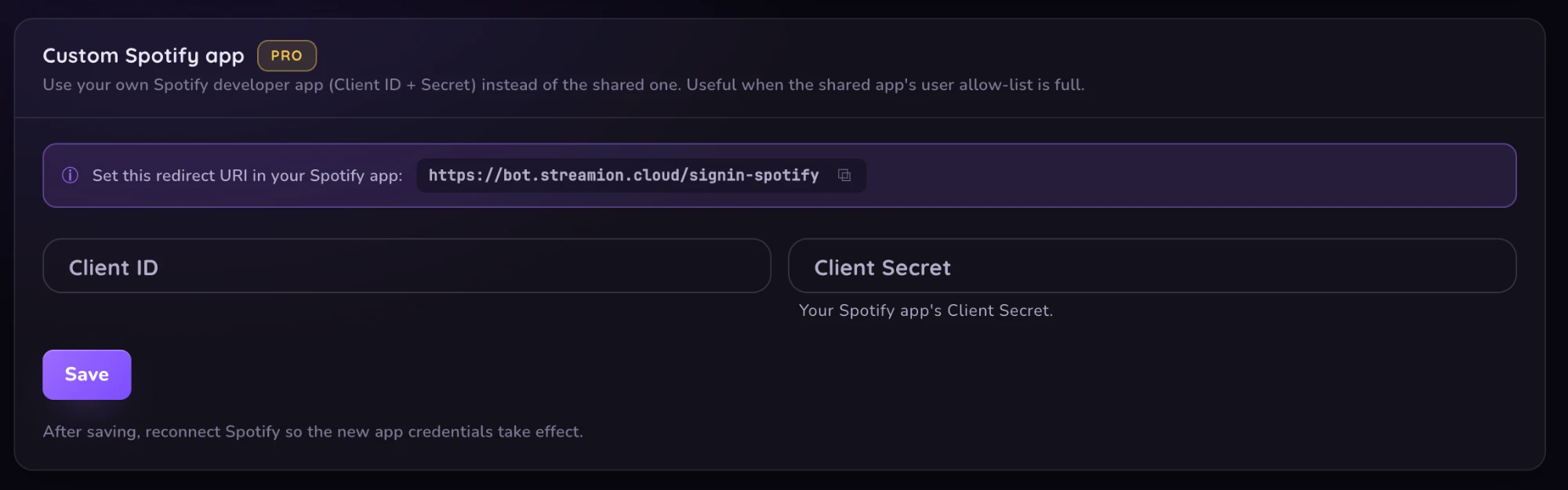
On Settings → Music, find the Custom Spotify App card (marked Pro with a crown). At the top it shows the Redirect URI with a copy button:
https://bot.streamion.cloud/signin-spotify
Copy it from the card — Spotify only accepts it character for character.
Step 2: Create the app in Spotify
-
Open the Spotify Developer Dashboard and log in with the Spotify account you want to connect to streamion.bot. On your first visit, Spotify asks you to accept its developer terms.
-
Click Create app at the top right.

-
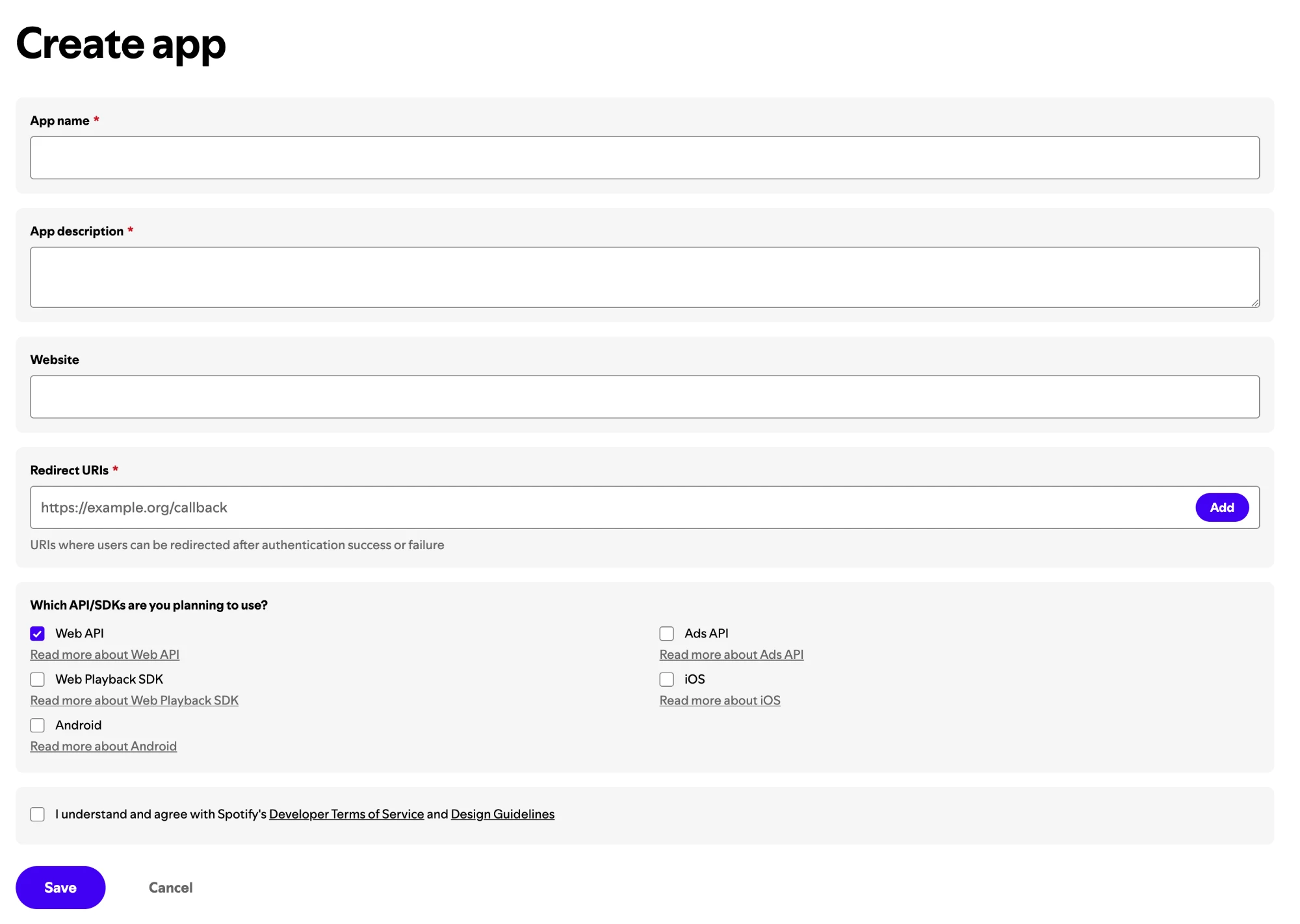
Fill in the form:
- App name (required) — anything you recognise, e.g. streamion.bot – yourchannel.
- App description (required) — a short sentence, e.g. Song requests for my Twitch channel.
- Website — optional; you can leave it empty or enter your channel link.
- Redirect URIs (required) — paste the address from step 1 and click Add next to the field.
- Which API/SDKs are you planning to use? — tick Web API. The other boxes stay empty.
-
Tick I understand and agree with Spotify's Developer Terms of Service and Design Guidelines and click Save.
Step 3: Copy the Client ID and Client Secret
Open your new app and click Settings. On the Basic Information tab you'll find the Client ID; click View client secret to show the Client Secret. Keep both at hand for step 5.
Treat the Client Secret like a password. Never show it on stream and don't share it. If it ever gets out, generate a new one in Spotify (Rotate) and enter it in streamion.bot again.
Step 4: Add your Spotify account to the user list
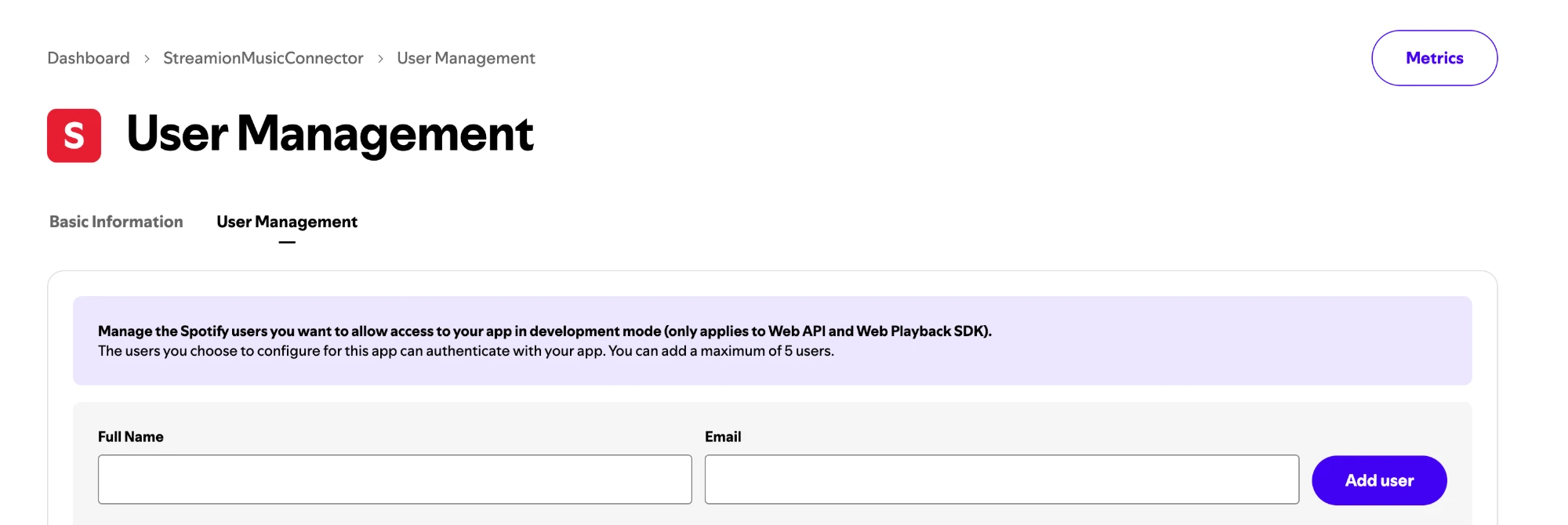
As long as an app is in development mode, Spotify only lets accounts on its user list use it — up to five. Accounts that aren't on the list can log in, but Spotify then refuses every request the bot makes.
- In your app's Settings, switch to the User Management tab.
- Under Full Name, enter your name, and under Email, the email address of the Spotify account you'll connect.
- Click Add user.
Step 5: Enter the app in streamion.bot
Back on Settings → Music, in the Custom Spotify App card:
- Paste the Client ID and the Client Secret.
- Click Save. streamion.bot confirms with Custom Spotify App saved., and the card shows Active — your own Spotify app is in use.
Step 6: Reconnect Spotify
A Spotify connection you set up earlier was made through the shared app and does not carry over to your own app. On the Spotify card, click Reconnect (or Connect Spotify if you weren't connected yet), log in with the Spotify account from step 4, and confirm. If you skip this, the old connection stops working after a short while and the Spotify card shows Re-authorize.
That's it: from now on, !sr, !song and the rest of the Spotify commands run through your own app.
Changing or removing your app
- New Client Secret: enter it and click Save. Leave the field empty to keep the stored secret — streamion.bot stores it encrypted and never shows it again. If the Spotify card then shows Re-authorize, click Reconnect.
- Back to the shared app: click Remove, then Reconnect Spotify.
- If Pro ends: your own app keeps working, and the card shows a notice. To switch back to the shared app, click Remove and reconnect Spotify.
If something doesn't work
Playlists page
On the Playlists page (Music · Spotify → Playlists, /playlists) you choose the playlist that song requests are added to. It has two lists:
- Saved playlists — the playlists you have imported into streamion.bot. At most one of them is Active; in the mode Active playlist, song requests go into that one.
- Your Spotify playlists — the playlists of your Spotify account. Click Load from Spotify to fetch them; after that the button reads Refresh.
To set up a playlist for song requests:
- Click Load from Spotify.
- Click Import next to the playlist you want. It now appears under Saved playlists.
- Click Set as active in its row.
The Owner column of Your Spotify playlists tells you whether !sr can use a playlist:
- Yours — the playlist belongs to your Spotify account.
!srcan add tracks to it. - Following — you only follow the playlist, for example one curated by Spotify or made by someone else. Spotify doesn't let you add tracks to a playlist you don't own, so
!srwould be rejected. Under Saved playlists such a playlist is marked Not yours. Pick one of your own playlists instead, or create a new one in Spotify and import it.
Other actions: click a saved playlist to see its tracks in a side panel, Open Spotify opens the playlist in Spotify, Deactivate stops using it for song requests, and the Delete icon removes it from streamion.bot (the playlist stays in your Spotify account). As Spotify requires, lists of Spotify playlists and tracks carry the Spotify logo, and every track links back to Spotify. The same goes for the Now playing card on your Dashboard.
While Spotify is not the active music provider, the Playlists page and the blacklist are read-only.
Song request settings
While Spotify is the active provider and connected, Settings → Music (/settings/music) shows the card Song Requests · Spotify. Every change is saved at once and confirmed with a short message; there is no Save button.
Modes
- Active playlist —
!sradds the track to the end of the playlist marked Active on the Playlists page. The playlist must belong to your Spotify account. - Spotify queue —
!sradds the track to Spotify's play queue (the one you see under "Queue" in the Spotify app). Queued tracks are temporary: once they have played, they are gone. Spotify must be playing on a device — otherwise the viewer gets "Could not queue track — no active device."
Channel-point song requests
Instead of — or in addition to — the !sr command, viewers can request songs by redeeming a Twitch channel-point reward. streamion.bot creates and manages the reward for you. A redeemed request is handled exactly like !sr: your length limit, explicit filter, duplicate check, per-user limit and blacklist all apply, and the bot answers in chat in the same way.
Set it up on Settings → Music (/settings/music), in the card Song requests via channel points. The card appears once the active provider is connected:
- Enable channel-point song requests — the switch at the top of the card. Turning it on creates the reward on your channel. Turning it off removes the reward and switches
!srback on. - Reward name — the reward's title in Twitch's channel-point menu (default Song Request, up to 45 characters).
- Channel-point cost — what viewers pay to redeem it (default 500, at least 1).
When you turn the switch on, streamion.bot asks whether the !sr chat command should be disabled. Choose Disable !sr if songs should only come in through channel points, or Keep both to leave the chat command working as well.
To request a song, a viewer redeems the reward and types a song name or a track link into its text box. If the song is added, the redemption is marked as fulfilled; if the request fails (no match, blocked, limit reached, …), the points are refunded automatically.
The reward needs a Twitch permission that older connections don't include. In that case the card shows a warning and a Reconnect button, and the switch stays locked. Click Reconnect and approve the request on Twitch — this reconnects your broadcaster account, which you can also do on the Channel page.
Blacklist
The blacklist keeps artists or keywords out of your song requests. You find it under Music · Spotify → SR Blacklist (/settings/spotify/blacklist). Click New entry, choose the Type and fill in the panel:
- Artist — type the artist's name, and streamion.bot looks the artist up on Spotify. You can also paste a Spotify link (
open.spotify.com/artist/…), a Spotify URI (spotify:artist:…) or the bare artist ID. Every track the artist appears on is blocked, including features and collaborations. - Keyword — at least 2 characters. A track is blocked if its title or the name of one of its artists contains the keyword; upper and lower case don't matter. Useful for blanket bans like
baby sharkorchristmas.
When !sr blocks a track, the viewer gets "@username that track is blocked." If you filled in the optional Reason, it follows in brackets.
Entries can't be edited: click an entry to see its details or delete it, and add a new one if something needs to change. The search field above the list filters by value or reason. Blacklist entries apply to your channel only.
Chat commands
The bot answers in the language set in your Bot Settings; the replies quoted on this page are the English ones. Under Chat Bot → Commands you can change each command's aliases, minimum role and cooldowns for your channel, or switch it off. The trigger itself is fixed.
Disconnecting
Click Disconnect on the Spotify card on /settings/music and confirm. streamion.bot deletes its tokens and removes the stored connection. To revoke the access on Spotify's side as well, remove streamion.bot at spotify.com/account/apps.
Troubleshooting
!srsays "Music requests are not configured for this channel." — No music provider is selected. Select Spotify under Music Provider on Settings → Music.!srsays "No active playlist set. A moderator must set one first!" — In the mode Active playlist, one saved playlist has to be active. Import a playlist on the Playlists page and click Set as active, or switch the mode to Spotify queue.!srsays "The active playlist isn't owned by the streamer, so tracks can't be added to it." — Pick a playlist marked Yours on the Playlists page, or switch the mode to Spotify queue.!srsays "Could not queue track — no active device." — In the mode Spotify queue, Spotify has to be playing. Open Spotify and start playback on any device.- The Spotify card shows "Missing scopes: …" — Click Reconnect to grant the missing permissions. This can be necessary after a streamion.bot update that adds Spotify features.
- The Spotify card shows Re-authorize, or
!srsays "Music provider connection needs re-authorization." — streamion.bot can no longer renew its access to Spotify. Click Reconnect on the Spotify card.